Build your workflow
You create workflows in the workflow builder, and once you publish them, the Platform pushes these workflows to the client devices running your code, using the SDKs that you have integrated.
Let's build a simple workflow that will ask the user to scan and verify their ID, and perform an additional biometric verification in case that the credibility of that ID is not high enough.
-
Go to Workflows and create a new workflow:
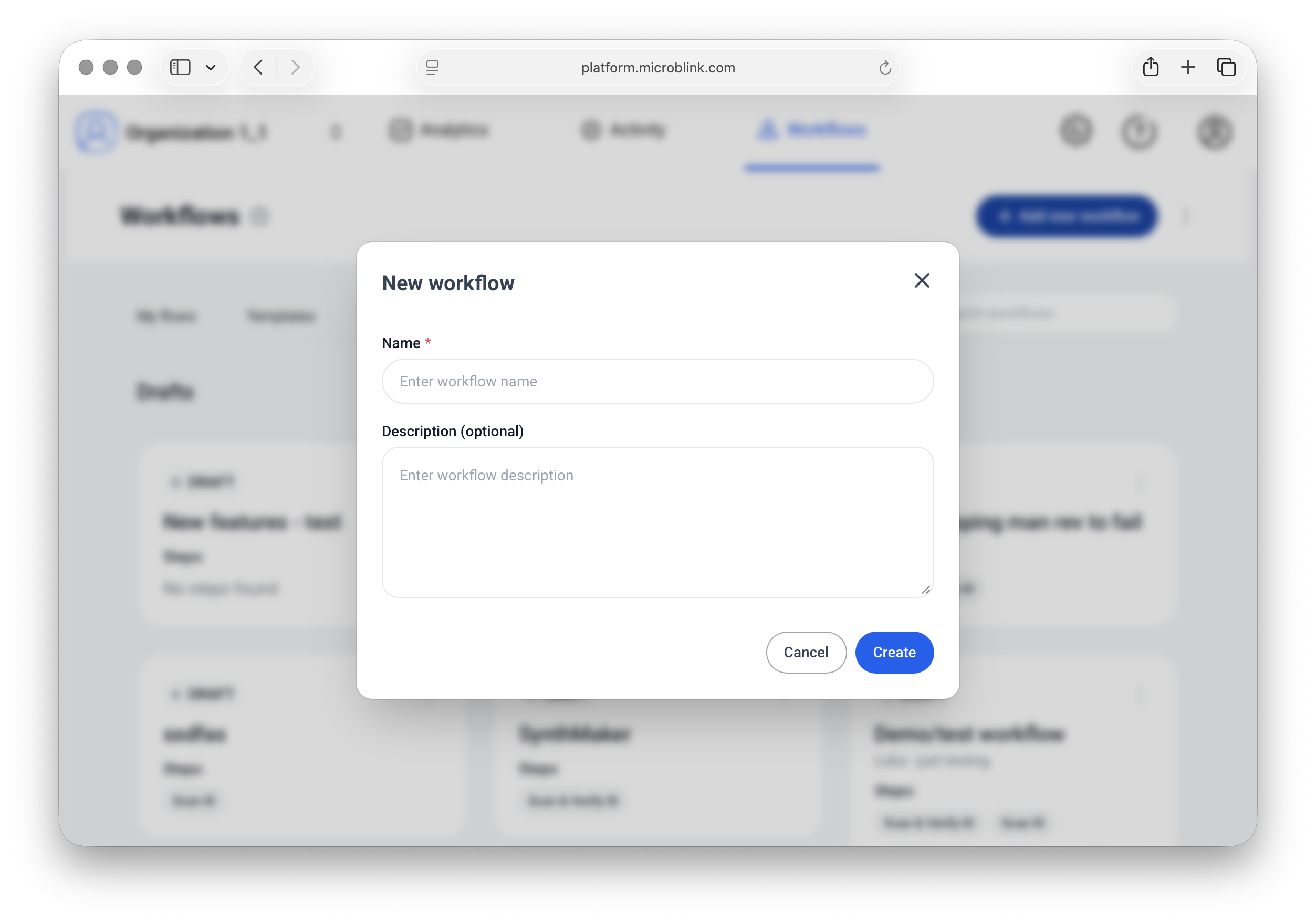
-
Drag the Scan & Verify ID capability to the first available slot.
-
Add an if-else branch.
-
Now configure the conditions for the if-else branch. In the configuration, select Scan & Verify ID, then Verification, then RecommendedOutcome. Set it so that it's equal to ManuallyReview (in the predefined values).
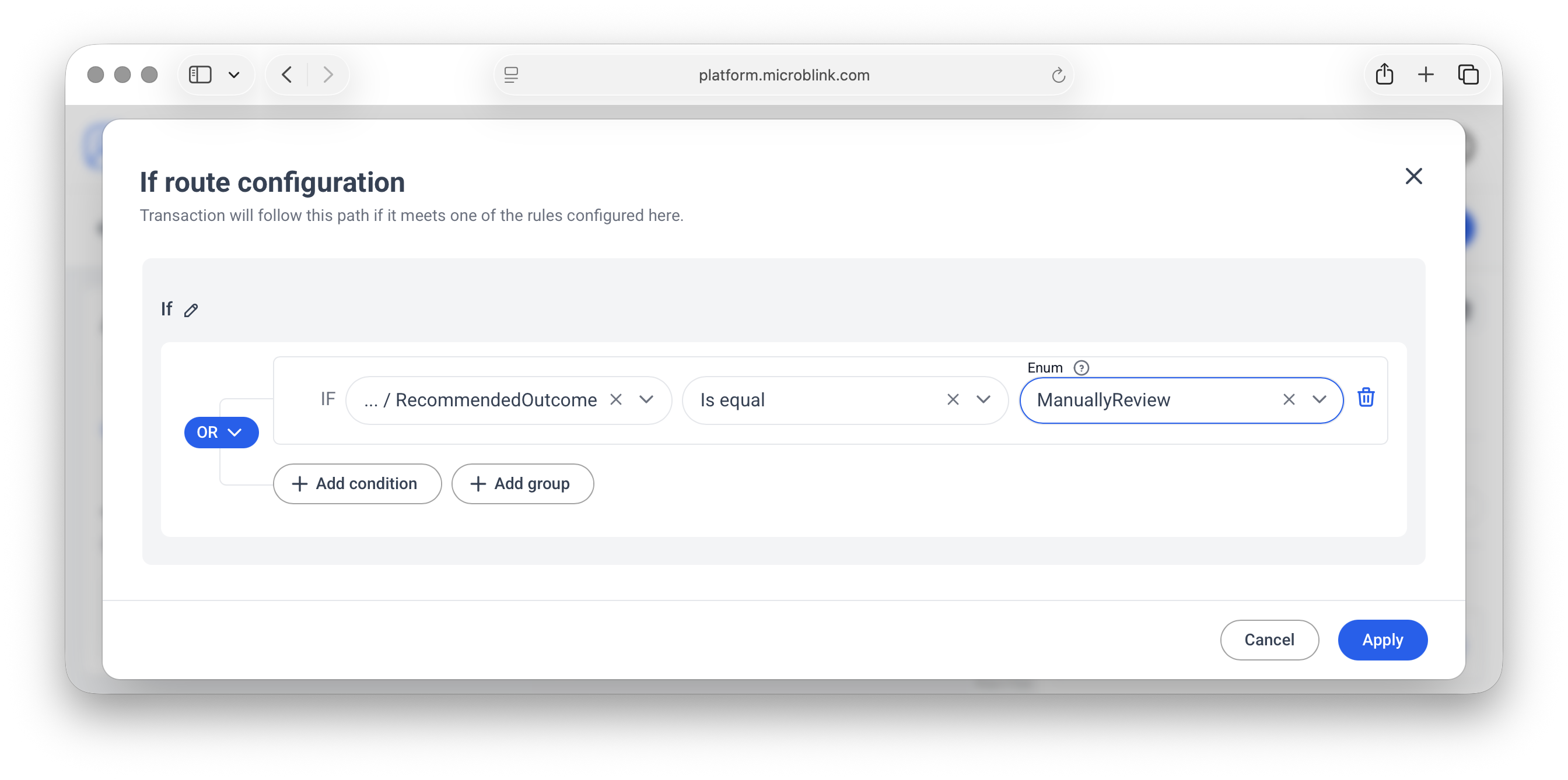
-
Add a biometric check using the Selfie, Liveness & Face Match capability to the if branch.
-
Publish your workflow to accept new transactions. Make note of the Workflow ID value—this is the value you will be using in your SDK for this specific workflow.
You're done!
Now, every time your users go through this specific workflow, they will scan their identity document. If we can confidently determine that it's a real document presented by a real person, then your users are immediately verified. Otherwise, if we cannot clearly determine that it's a real document, but also cannot say with confidence that it's a fake, your users are prompted to take a selfie.
We then match their selfie with the image on their identity document. If it matches, they are verified.
In this tutorial you built a simple verification flow. More complex workflows are also possible. Read more about all the capabilities that you can use to verify your users.