Handling missing fields
Occasionally you might encounter situations where different capabilities may or may not provide a specific piece of information that you need. For example, you could set up a workflow to have the Scan & Verify capability and then expect that to extract an address, which you can then check with Personal data checks.
But what happens if the scanned document doesn't contain the field that you intend to check? For example, a user could scan a passport—which would populate fields such as first name, last name, date of birth and so on—but notably, it wouldn't provide any information about the address.
In that case, were the capabilities linked sequentially, this workflow would fail:
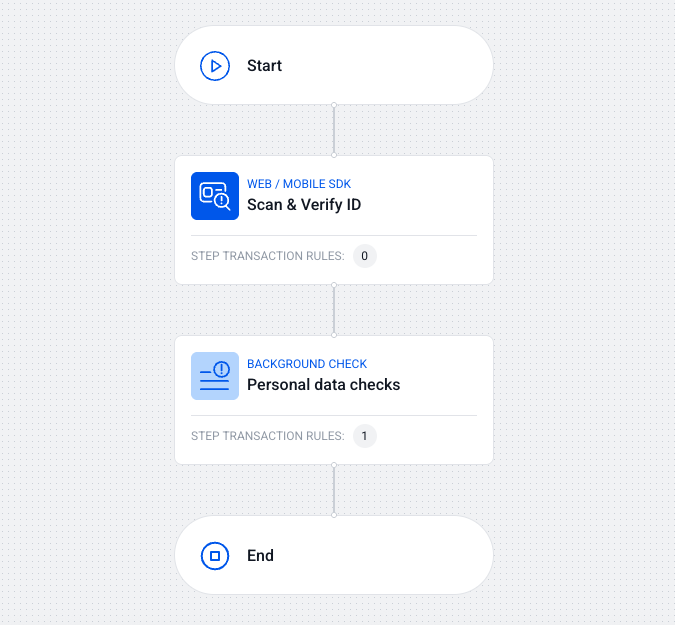
You (implicitly) expect an address field to be provided, but the scanned document doesn't have that, so you don't pass it for personal data checks. Since the user's info cannot be checked—they fail!
One way to handle this issue is to design the workflow in such a way that it leverages functional blocks before conducting background checks.
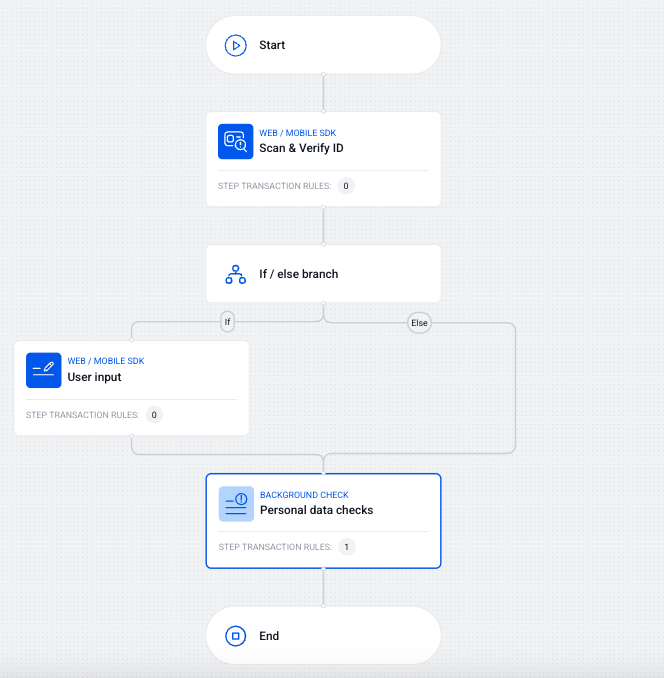
By using functional blocks, you can check if an expected field has been collected. If it has not, you branch out and ask the user to provide that specific field. For example:
Defining conditions
In the previous example, you would design your functional block so that it checks if the Address field is empty or not.
You could do this by setting your "if" statement like so:
- Parameter: Scan & Verify ID / Extraction / Address
- Operator: Regex
- Operand:
^$
In this case, if the address is anything but an empty string, the workflow proceeds uninterrupted, but if it's an empty string (i.e. not collected in the scanning step), the user is redirected to provide it manually (or through another capability).
Another way you might do that is by checking the document type. For example, you could define only valid document types by linking several "or" clauses together and requiring the document type to be one of the documents that you support.
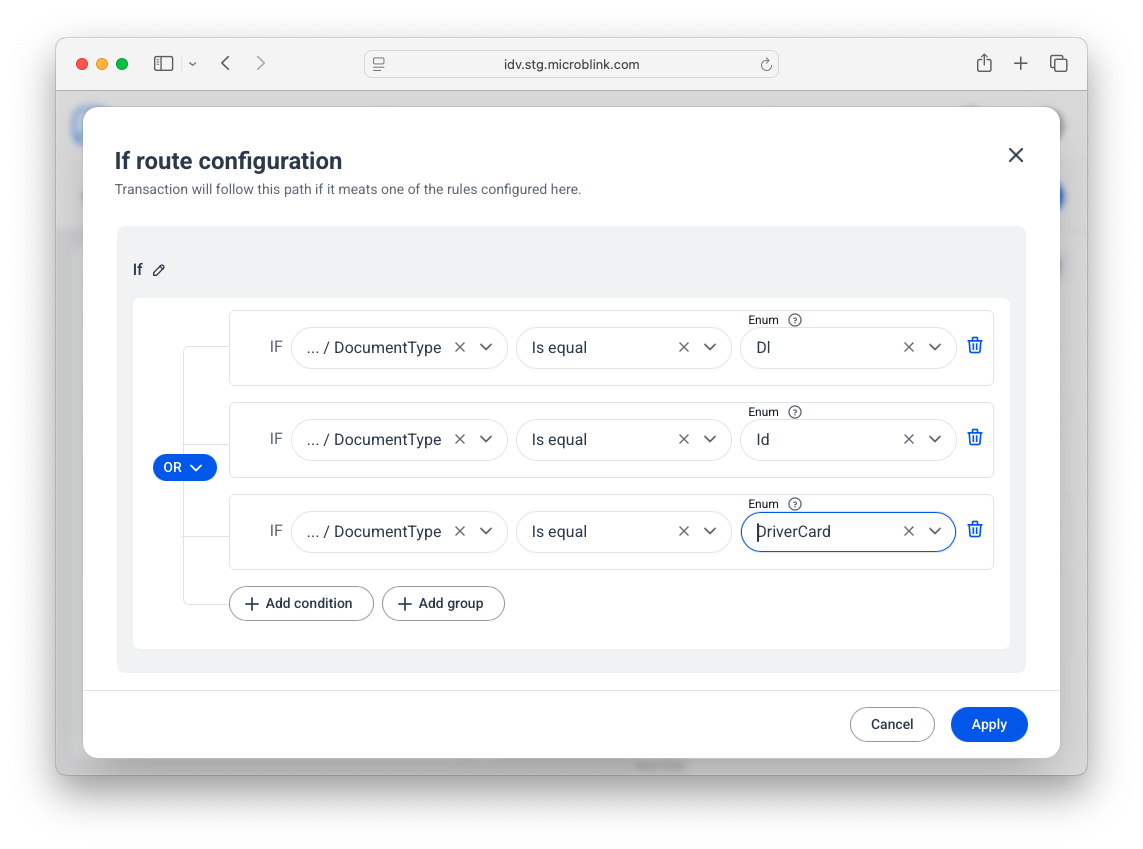
For reference, here are the supported document types.
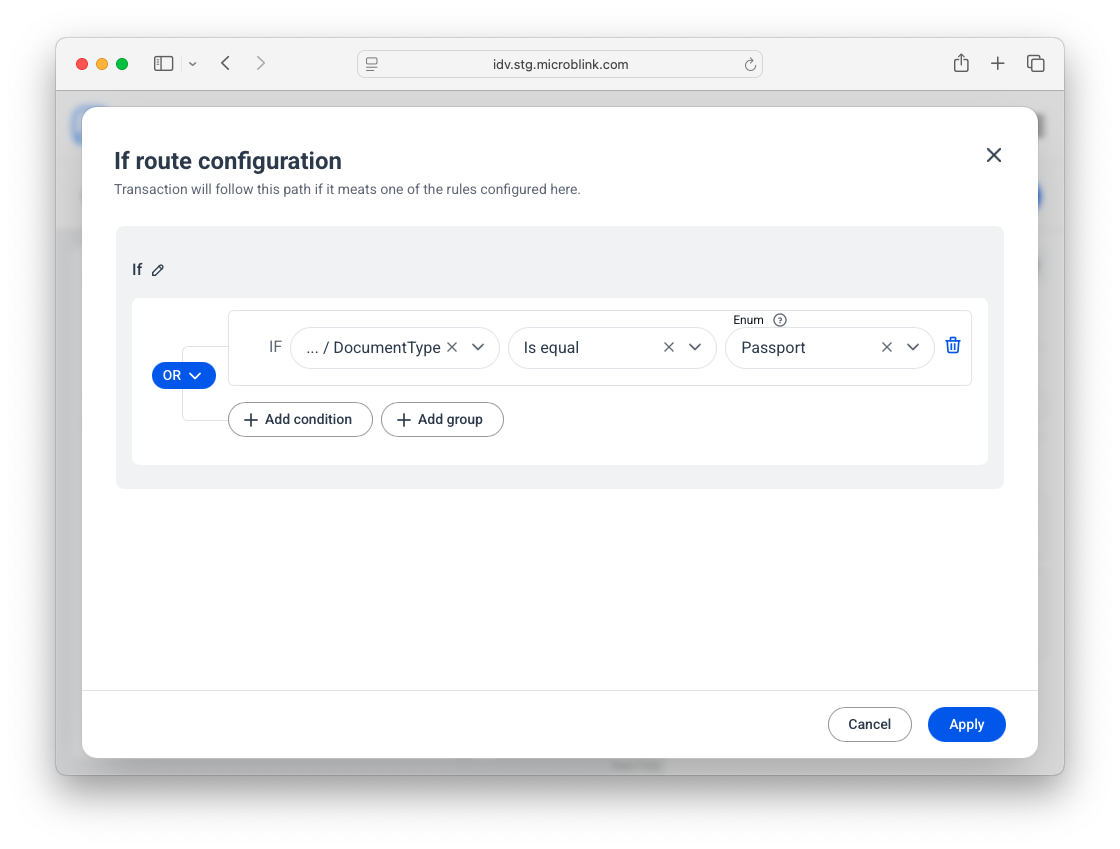
Alternatively, you could define the negative case: if a document type is an unsupported one (such as a passport), then require the user to fill in the address info manually.